

Before you even think about picking up a screwdriver, it's essential to understand exactly what’s at stake. Removing a laptop hard drive isn't just a technical task; it's the final, and most critical, step in protecting your company's proprietary information, client data, and financial records.
This is less about the "how" and more about the "why"—reframing a simple hardware removal into an essential security protocol.
Why Hard Drive Removal Is a Critical Security Step
In a business environment, a retired laptop is never just old equipment. It's a portable archive of sensitive information. A single drive can hold everything from employee records and strategic plans to customer databases and login credentials.
Simply deleting files or even reformatting the drive gives a false sense of security. The truth is, that data can often be recovered with widely available software, leaving your business exposed.
The Real-World Consequences of Inaction
Failing to properly manage data on end-of-life devices can lead to devastating consequences. We’ve seen it happen time and again: improperly decommissioned laptops result in data breaches, steep regulatory fines, and permanent damage to a company's reputation.
These aren't theoretical risks. Data breaches from mishandled hard drives are a catastrophic financial and operational threat. The Change Healthcare ransomware attack, for instance, crippled nationwide healthcare operations with response costs hitting an incredible $2.87 billion. The Snowflake attack compromised data from major corporations, leading to ransom demands as high as $5 million.
These incidents are stark reminders of the severe risks of inadequate data destruction.
For any organization, the cost of a data breach extends far beyond financial penalties. It includes loss of customer trust, damage to brand reputation, and potential legal action—outcomes that can take years to recover from, if ever.
A Non-Negotiable Step in IT Asset Disposition
Viewing hard drive removal as a non-negotiable security measure is crucial. When a laptop leaves your control, you must have absolute certainty that its data cannot be accessed by anyone. This is why professional, certified data destruction is the only acceptable path forward for any serious business.
The physical removal of the drive is the first and most important step. It accomplishes several key objectives:
- Breaks the Chain of Access: It immediately severs the connection between the hardware and the sensitive data it holds.
- Enables Auditable Destruction: It allows the drive to be inventoried, tracked, and physically shredded or wiped according to industry standards.
- Guarantees Compliance: It’s a foundational step for meeting data privacy regulations like HIPAA, FACTA, and the FTC Disposal Rule.
Ultimately, the goal is to make it physically impossible for unauthorized parties to retrieve your information. You can learn more about our certified security and data destruction services to see how it's done professionally.
Treating this task with the seriousness it deserves is what protects your business from becoming another cautionary tale.
Assembling Your Toolkit for a Safe Removal
Before you even think about touching a screw, let's talk about getting your tools in order. Trying to remove a laptop hard drive without the right gear is a fast track to stripped screws, cracked plastic, and maybe even a dead motherboard. This is a job that calls for precision, not brute force.
The good news? You don't need a high-tech workshop. A small, dedicated kit will see you through nearly any laptop that comes across your desk. Think of it like a surgeon prepping their instruments—having everything ready and within arm's reach makes the whole process smoother and safer.
The Essential Hardware Kit
Your core tools are all about control and avoiding damage. While every laptop has its quirks, this basic setup will handle the vast majority of them.
- Precision Screwdriver Set: This is non-negotiable. Laptops are filled with tiny screws, usually Phillips #0 and #00. You'll also run into Torx (T5, T6) and, especially with MacBooks, Pentalobe screws. A good set with magnetic tips is a lifesaver for not losing those microscopic fasteners.
- Non-Metallic Pry Tools (Spudgers): Please, step away from the flathead screwdriver. Using metal to pry open a plastic laptop case is a recipe for ugly scratches and can easily short-circuit components. Plastic or nylon spudgers are specifically designed to pop open clips and bezels without leaving a mark.
- Tweezers: A pair of fine-tipped, non-conductive tweezers is your best friend for disconnecting those delicate ribbon cables or maneuvering a tiny connector without zapping it with static.
- Screw Organizer: A simple magnetic mat or a little tray with compartments is an absolute must. It keeps you from losing screws and, more importantly, helps you remember which screw goes where when it's time for reassembly.
Before you start, it’s smart to have a quick-reference guide for your toolkit.
Essential Toolkit for Laptop Hard Drive Removal
Here’s a breakdown of the tools you'll need and, more importantly, why you need them for a safe and successful removal.
| Tool/Item | Primary Use | Why It's Important |
|---|---|---|
| Precision Screwdriver Set | Removing case and component screws | Laptops use various small screw types (Phillips, Torx); the wrong driver will strip them instantly. |
| Plastic Pry Tools (Spudgers) | Safely opening the laptop case | Prevents scratches and cracks in plastic parts and avoids short-circuiting the motherboard. |
| Fine-Tipped Tweezers | Disconnecting ribbon cables and small parts | Allows for precise handling of delicate components without causing damage or transferring static. |
| Screw Organizer/Mat | Keeping screws sorted | Prevents loss of tiny screws and ensures correct reassembly, as screw lengths often vary. |
| Anti-Static Wrist Strap | Grounding your body | Your primary defense against ESD, safely discharging static electricity before it can fry components. |
| Anti-Static Mat | Providing a safe work surface | Creates a grounded area for the laptop and its parts, continuously dissipating static charge. |
Having these items on hand turns a potentially risky task into a controlled, professional procedure.
The Critical Role of ESD Protection
Now for the invisible threat: Electrostatic Discharge (ESD). This is the sudden zap of electricity between two objects, and it's the silent killer of electronics. Even a tiny shock you can't feel is more than enough to destroy the sensitive microchips on a motherboard.
An ESD event can happen with as little as 10 volts. For comparison, a human doesn't even feel a static shock until it hits 3,000 volts. You can permanently destroy a component without ever knowing it happened.
This is exactly why IT pros are so serious about ESD safety. The goal isn't just to pull the drive out; it's to keep the rest of the laptop alive for potential resale, donation, or responsible recycling. Skipping this step is just asking for trouble.
To fight back against ESD, you need two key pieces of gear:
- Anti-Static Wrist Strap: This is your first line of defense. You wear it on your wrist and connect the other end to a proper grounding point (like an unpainted metal part of a desk or computer case). It gives any static buildup on your body a safe path to the ground, away from the laptop's internals.
- Anti-Static Mat: For bigger jobs or if you're working on multiple machines, a mat provides a grounded, static-free zone to work on. It constantly dissipates static from the laptop, your tools, and any components you set on it.
By gathering this simple toolkit and taking ESD seriously, you're setting the stage for a successful, professional, and damage-free hard drive removal. This preparation is everything.
Navigating Different Laptop Models and Designs
Not all laptops are created equal, a fact that becomes immediately apparent when attempting to open one. The sleek, seamless unibody of a MacBook Air is a world away from the easy-to-service, modular design of a Dell Latitude or Lenovo ThinkPad. Successfully removing a drive requires knowing what you’re up against and adjusting your approach for each machine.
There’s no universal guide here. Every manufacturer has its own philosophy on design and user accessibility, which directly impacts how you get to the hard drive. Think of it as learning the unique blueprint for every model you handle.
This section provides a practical overview of common laptop architectures, giving you the know-how to pull a drive from the most prevalent machines in a corporate environment.
The Corporate Workhorses: Dell Latitude and Lenovo ThinkPad
For any IT manager, Dell Latitudes and Lenovo ThinkPads are the bread and butter of the corporate world. The good news? They're designed to be serviced. Their construction is typically logical and modular, simplifying the process, but they still have their own quirks.
On most older models, the process is straightforward:
- Locate the Access Panel: Flip the laptop over and look for a small, dedicated panel held in by one or two screws. This service door usually provides access to the hard drive and RAM.
- Remove the Caddy: Once the panel is off, you’ll see the hard drive—typically a 2.5-inch SATA drive—housed in a metal bracket or "caddy."
- Disconnect and Remove: Unscrew the caddy from the chassis, slide the drive gently to disconnect it from the SATA port, and lift it out. From there, a few more screws release the drive from its caddy.
However, as designs evolve, so do removal procedures. Modern Latitudes and ThinkPads are slimmer, often requiring the removal of the entire bottom case. This means dealing with multiple screws around the perimeter and sometimes a few hidden under rubber feet. A plastic pry tool is essential here to pop the plastic clips without scratching or breaking the case.
Once inside, you won't find a bulky hard drive. Instead, you'll be looking for a much smaller M.2 SSD, usually secured by a single, tiny screw.
The Sealed Ecosystem: Apple MacBooks
Apple MacBooks are legendary for their sleek designs and notorious for being difficult to service. Removing a drive from a MacBook is a test of patience, precision, and having the exact right tools. For starters, Apple uses proprietary Pentalobe screws on the exterior, rendering a standard screwdriver set useless.
Once past the outer case, you’ll find a tightly packed interior where every millimeter is utilized.
Always disconnect the battery first. This cannot be stressed enough. It should be the very first step after opening the case to prevent shorting any components. The connector is usually delicate and requires a gentle lift from a nylon spudger, not a screwdriver.
If you’re working on an older MacBook Pro (pre-2016), you might find a standard 2.5-inch SATA drive that's relatively straightforward to remove. On nearly all modern MacBooks, however, the SSD is not a separate component. The storage consists of flash memory chips soldered directly onto the logic board.
In these cases, the storage cannot be physically removed. The only way to secure the data is through certified destruction of the entire logic board. This is a critical distinction for any IT asset disposal plan involving Apple hardware. For more on this, check out our guide on planning for a laptop upgrade, which touches on some of these issues.
Ultrabooks and Convertibles: The Compact Challenge
Ultrabooks from brands like HP, Acer, and Microsoft’s Surface line prioritize being thin and light. Unfortunately, that design priority often results in complex, layered internals that can be a challenge to disassemble. The process often feels similar to working on a modern MacBook.
You can almost guarantee the entire bottom cover has to come off. Be on high alert for hidden screws under adhesive rubber strips or company logos. These machines are also known for using incredibly fragile ribbon cables with tiny, flip-up locking tabs. Rushing and tearing one of those can easily disable the keyboard, trackpad, or screen.
Inside, M.2 SSDs are standard due to their small footprint. You will generally encounter two types:
- SATA M.2: Uses the older, slower protocol but in the newer, smaller form factor.
- NVMe M.2: The much faster standard that connects directly to the PCIe bus.
They look similar, but their connectors have different keying. The removal process is identical for both: remove one small screw, and the drive will pop up at an angle, ready to be gently pulled out.
Here’s a simple look at the toolkit you’ll need.
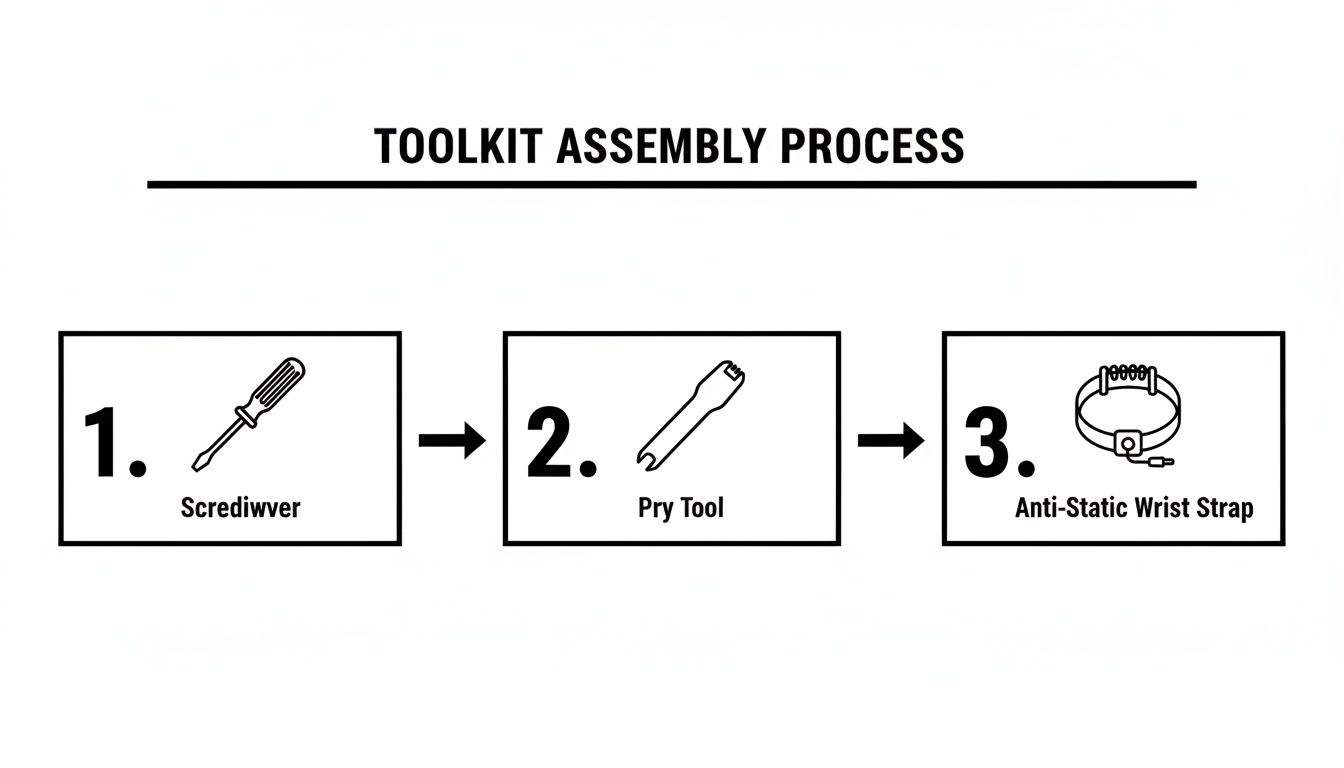
As you can see, a successful removal comes down to just three things: having the right screwdriver, using a safe pry tool to avoid cosmetic damage, and wearing anti-static protection to prevent frying any components.
Understanding these key differences is what separates a smooth, professional job from a costly accident. Before you touch a single screw, do a quick search for a service manual or teardown guide for the specific model you're working on. It will save you significant frustration and prevent damage, ensuring the asset retains its value and its data is handled securely.
What To Do With the Drive After It's Removed
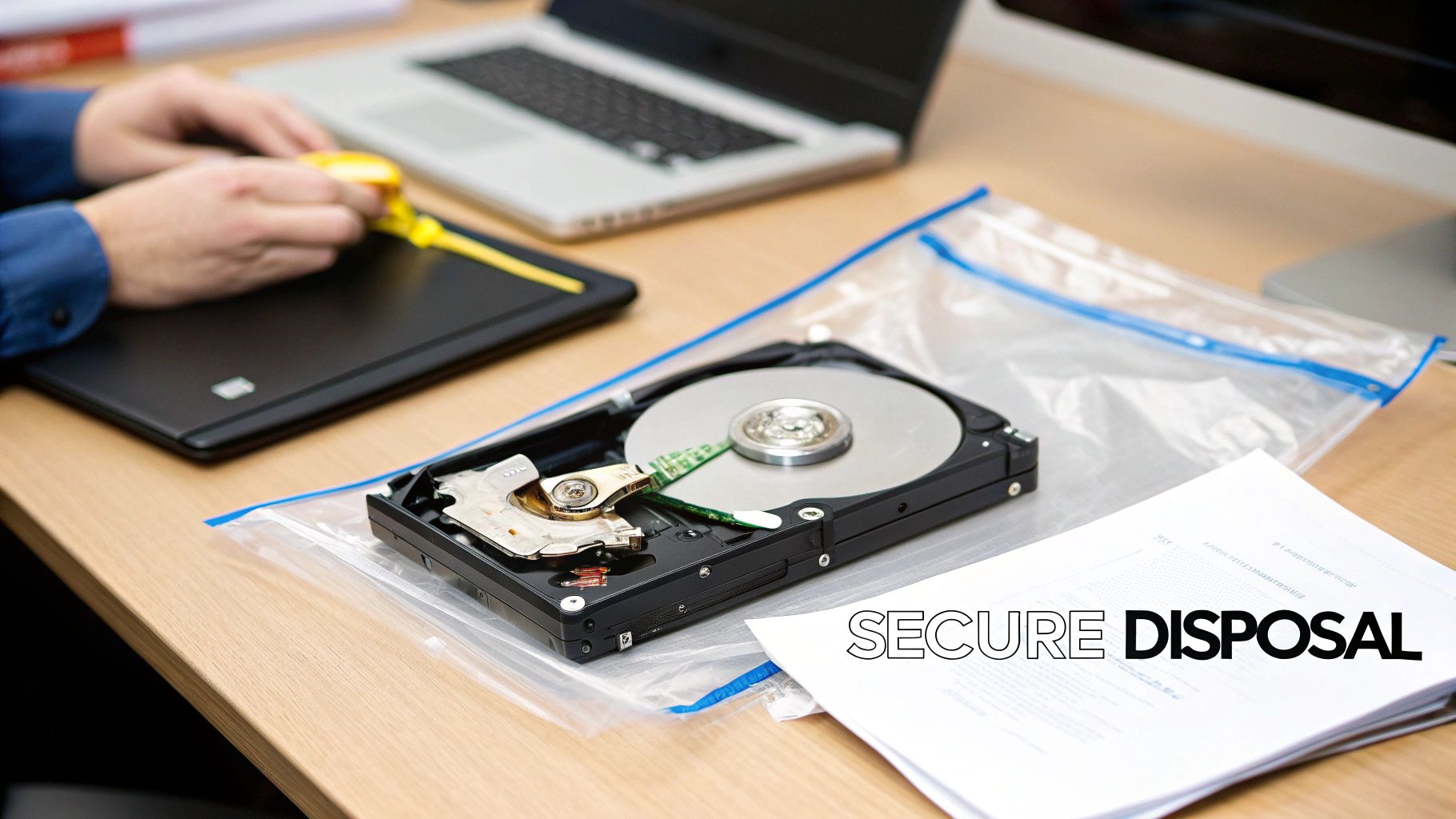
So, you've successfully removed the hard drive from the laptop. This is where the real security work begins. Holding that drive is a critical decision point. Your next action determines whether your company’s sensitive data is permanently eliminated or becomes a ticking time bomb of liability.
Many businesses attempt well-meaning but ultimately misguided methods, like drilling holes or simply reformatting the drive. These DIY approaches provide a false sense of security and fail to meet professional or regulatory standards. For any commercial enterprise, there are only two acceptable paths forward: certified data wiping or physical destruction.
Data Wiping vs. Physical Shredding
Choosing between wiping and shredding boils down to one simple question: does the drive have any potential for reuse? When performed by a certified vendor, both methods guarantee your data is completely irrecoverable.
Certified Data Wiping: This is a software-based approach that overwrites the entire drive with random data, typically following the strict NIST 800-88 guidelines. Every single sector is erased, making the original information impossible to recover. Wiping is the ideal choice for newer or high-capacity drives that can be refurbished and resold, helping your business recover value from its IT assets.
Physical Shredding: For older, damaged, or proprietary drives where reuse is not an option, shredding is the definitive solution. The drive is fed into an industrial shredder that grinds it into tiny, unrecognizable pieces of metal and plastic. This method offers absolute, verifiable proof that the data is gone forever.
After the drive is out, you might also need to think about processes like securely decrypting encrypted text, especially if data recovery is part of the plan or you need to ensure data is truly unreadable before disposal. Proper handling at this stage is crucial. If you want a deeper dive on what to do next, check out our in-depth guide covering what to do with old hard drives.
The demand for these professional services is growing rapidly. The hard disk destruction equipment market is already valued at approximately $450 million globally for commercial use alone. Market experts predict this sector will expand by 7-9% annually over the next several years, driven by increasing data volumes and stricter regulations. This trend underscores that professional destruction is no longer optional—it's a core component of modern IT risk management.
The Power of a Certificate of Data Destruction
Regardless of the method chosen, the job isn't complete until you have the correct documentation. A Certificate of Data Destruction (CoDD) is far more than a receipt; it's a critical legal document that serves as your official, auditable proof of compliance.
This certificate formally transfers the liability for the data from your company to the ITAD vendor. It creates a clear, defensible record demonstrating that you performed your due diligence to protect sensitive information—an absolute necessity for meeting regulatory requirements.
A Certificate of Data Destruction should be considered a non-negotiable part of any IT asset disposal process. It is your shield against potential legal challenges and regulatory fines, proving that you took every necessary step to prevent a data breach.
A proper CoDD will always include key details for your audit trail:
- The unique serial number of every hard drive destroyed.
- The exact date the destruction took place.
- The specific method used (e.g., NIST 800-88 wiping, physical shredding).
- A statement of compliance confirming the process meets regulations like HIPAA, FACTA, and the FTC Disposal Rule.
Without this document, you have zero verifiable proof that your data was handled correctly, leaving your organization completely exposed. Just removing a laptop hard drive is only the first step; ensuring its certified destruction and obtaining that certificate is what truly closes the security loop.
Why Partnering with a Certified ITAD Vendor Makes Sense
For any business managing more than a few devices, the DIY approach to hardware disposal can quickly become a minefield of risks and logistical challenges. While removing one hard drive seems simple, scaling that to dozens or hundreds of laptops creates a significant drain on your team's time and a compliance headache waiting to happen.
This is precisely where a certified IT Asset Disposition (ITAD) partner like Beyond Surplus provides real value. Working with a professional vendor is not an expense; it's an investment in risk mitigation that shifts the entire burden of compliance, logistics, and data security from your organization to a team of specialists.
Ensuring an Unbroken Chain of Custody
From the moment your assets leave your facility, their security is paramount. A certified ITAD vendor’s first priority is establishing a secure and fully documented chain of custody. This is a rigorous process involving serialized asset tracking, GPS-monitored transport, and tightly controlled access at every stage, from your loading dock to the final destruction facility.
This meticulous level of tracking eliminates blind spots where a drive could be lost, stolen, or misplaced. For your business, it provides verifiable proof that every single device containing your data was handled securely and is accounted for, which is the bedrock of regulatory compliance.
The Critical Role of Compliance and Audit Reporting
Attempting to manage asset disposal in-house often falls short when it comes to documentation. When auditors inquire, you need more than a verbal confirmation that drives were wiped. A professional ITAD partner delivers detailed audit reports and official Certificates of Data Destruction. These are not just papers; they are your legal proof that you have met your obligations under complex data privacy laws.
Without this formal documentation, your organization has no defense if a data breach is ever traced back to improperly handled equipment. A certified partner effectively transfers this liability, shielding your business from potentially devastating fines and legal battles. You can get a clearer picture of this professional process by reading our overview of what IT Asset Disposition is and why it's so important.
Navigating Environmental and Data Security Crises
Partnering with an ITAD vendor also helps your business address its environmental responsibilities. The global e-waste problem is staggering, with over 50 million metric tons of electronic waste generated annually. Alarmingly, only 20% of it is properly recycled, leaving the other 80% to end up in landfills or be illegally exported.
And what about the drives themselves? Between 20 to 70 million hard drives reach their end-of-life annually and are often scrapped without proper data wiping, leaving sensitive information exposed. You can learn more about how your business can avoid contributing to these global e-waste statistics at Excess IT Hardware.
A certified ITAD vendor ensures that after you remove a laptop hard drive for destruction, the remaining chassis and components are recycled according to R2 or e-Stewards standards. This not only prevents hazardous materials from polluting the environment but also supports your corporate sustainability goals.
By outsourcing, you free your IT team from the time-consuming, high-risk job of managing retired hardware. They can stop worrying about hard drive removal logistics and return their focus to strategic projects that drive your business forward. This streamlined workflow—from secure pickup to final, certified destruction—turns a potential liability into a secure, compliant, and efficient process.
Common Questions About Hard Drive Removal and Destruction
Even with a solid plan, questions inevitably arise when dealing with sensitive corporate data. Addressing these concerns upfront helps IT managers and business owners make confident, compliant decisions when retiring company laptops.
Here are some of the most common questions we hear from our business clients, along with the direct answers you need.
Is Formatting a Hard Drive Good Enough for Data Security?
Absolutely not. This is one of the most dangerous misconceptions in IT asset disposal.
When you format a drive, you are only removing the file system's pointers to the data, not the data itself. The underlying information remains on the disk and can be easily recovered with widely available software tools.
Relying on formatting provides a false sense of security and is not compliant with any serious data privacy standard like HIPAA or FACTA. For true, defensible data protection, you must use either certified data wiping that meets NIST 800-88 standards or complete physical destruction. There is no middle ground in a commercial context.
What Is a Certificate of Data Destruction and Why Is It Important?
A Certificate of Data Destruction (CoDD) is your official, audit-proof record that your company's data has been properly and permanently destroyed. Think of it as a legal document from your ITAD vendor that formally transfers the liability for that data from your organization to theirs.
This certificate is your key to proving due diligence under regulations like HIPAA, FACTA, or the FTC Disposal Rule. It’s not just a piece of paper; it’s your evidence.
A proper CoDD will include critical details for your audit trail:
- The unique serial number of every single drive that was destroyed.
- The specific destruction method used (e.g., wiping, shredding).
- The date and location where the destruction took place.
- A formal statement of confidentiality and compliance.
Without a CoDD, you have no verifiable proof that you took the appropriate steps, leaving your business exposed. You can learn more about what a proper hard drive destruction certificate includes and why it's a non-negotiable part of the process.
Can We Remove Drives In-House and Have You Destroy Them?
Yes, and this is a very common and effective hybrid model for businesses. Many organizations prefer to have their own IT teams handle the physical removal of hard drives. This strategy keeps the assets and the sensitive data under their direct control until the final moment of transfer.
This hybrid model offers the best of both worlds: your team maintains physical control during removal, and a certified vendor provides compliant, documented destruction. It’s a practical strategy that balances internal security protocols with outsourced expertise.
Once your team has a batch of removed drives, you arrange for a secure, documented pickup. An ITAD partner like Beyond Surplus will then transport them for certified shredding—either off-site or on-site at your location—and provide all the necessary compliance paperwork afterward.
What Should We Do with the Laptop After Removing the Drive?
Once the hard drive is removed and secured, the laptop chassis itself is still an asset that requires responsible management. Do not simply discard the empty laptop. It still contains recoverable materials and, more importantly, hazardous substances like lead and mercury.
A certified ITAD partner will evaluate the remaining components—RAM, CPUs, screens, motherboards—to determine if there is any resale or refurbishment value. Anything that cannot be reused is processed according to strict R2 or e-Stewards recycling standards. This ensures that hazardous materials are managed safely and valuable resources are recovered, helping your company meet its corporate sustainability goals.
Contact Beyond Surplus for certified electronics recycling and secure IT asset disposal. Contact us today for a free consultation and discover how our certified services can protect your business.


