

The question “how to format a hard drive from BIOS” is a common one in IT departments across the United States. The direct answer is simple: you can’t, at least not in the way many people assume. The BIOS/UEFI firmware in your business computers is designed to initialize hardware, not manage it. To format a drive, you must use the BIOS to boot from an external tool, such as a Windows installation USB, which contains the necessary formatting utilities. This guide is specifically for IT managers and professionals in a business context, focusing on the correct procedures and security implications.
Your computer’s BIOS or UEFI firmware is the foundational layer that tests hardware and then hands off control to a bootable device. That device—like a USB stick with a Windows installer or a data destruction tool—has the actual software needed for formatting.
Why You Can’t Directly Format a Drive in BIOS
Let’s clear up a common misconception that trips up even seasoned IT professionals. The phrase “format from BIOS” is technically incorrect, and understanding why is key to efficient IT asset management.
Your computer’s BIOS (Basic Input/Output System) or its modern successor, UEFI (Unified Extensible Firmware Interface), has a very specific job. It runs a Power-On Self-Test (POST) to ensure core components—CPU, RAM, and storage drives—are connected and functioning. Once it confirms system readiness, it boots from the first device in the configured boot order.
To put it simply, the BIOS/UEFI can detect the drive, but it can’t modify its contents. To clarify the roles, let’s break down what each system does.
BIOS/UEFI vs. Formatting Utility Roles
This table highlights the clear division of labor between your computer’s firmware and the actual formatting software, a critical distinction for any IT professional.
| Function | BIOS/UEFI Role | Formatting Utility Role (e.g., Windows Installer) |
|---|---|---|
| Hardware Initialization | Performs POST to check and initialize hardware. | Not involved in the initial hardware check. |
| Boot Management | Selects the boot device based on a priority list. | Is the bootable application launched by the BIOS/UEFI. |
| Drive Formatting | No capability to create, delete, or format partitions. | Contains all tools for managing file systems (NTFS, FAT32). |
| File System Management | Does not interact with or recognize file systems. | Directly interacts with the drive to write a new file system. |
As you can see, the BIOS/UEFI is the gatekeeper, not the groundskeeper. It just points to the right tool for the job.
The Role of a Bootable Utility
This is where the real work of formatting takes place. The BIOS itself doesn’t have the sophisticated programming needed to manage file systems, create partitions, or wipe data. Those heavy-lifting tasks are handled by other software.
- Operating System Installers: When you boot from a Windows or Linux installation USB, you’re loading a mini-OS that includes powerful disk management tools.
- Dedicated Bootable Tools: Programs like DBAN (Darik’s Boot and Nuke) are designed to run from a USB drive or CD specifically for data destruction, a crucial step in IT asset disposal.
When a system gets sluggish, a fresh format is often a great way to speed up computer performance. But the process always starts by booting from one of these external tools, never from a setting inside the BIOS menu itself. You can see more details on the process in this helpful guide on hard drive formatting.
Key Takeaway: Think of the BIOS as your car’s ignition. It starts the engine but doesn’t have the tools to change the tires. To format a drive, you have to boot into a “repair shop”—an external utility with the right equipment for the job.
This distinction is vital for any business managing IT assets. When it’s time for computer recycling or data center decommissioning, you can’t just hit a key to enter the BIOS and look for a “format” button—it isn’t there. Your IT department must have bootable media ready to properly prepare or wipe those drives according to company policy and compliance standards.
Before you can wipe the drive, you have to get to it. For practical steps on accessing the hardware, check out our guide on how to remove a laptop hard drive.
Preparing Your System and Creating Bootable Media
Before restarting a computer and entering the BIOS, proper preparation is essential. Getting this stage right is the difference between a smooth format and significant operational delays. It starts with the most critical asset: your business data.
Safeguard Your Business Data First
The first, non-negotiable step is to back up all critical business data. Formatting is a destructive process that erases everything on the drive. For a business, losing a single file can lead to major operational setbacks, compliance failures, or financial loss. Your backup strategy should be robust and verified.
- Full System Image: Use enterprise-grade tools to create a complete clone of the drive. This is your best option for disaster recovery or system migration.
- File-Level Backup: For a more targeted approach, copy essential business files and folders to a network-attached storage (NAS) device, a secure server, or a compliant cloud service.
- Verification: Do not assume a backup was successful. Always spot-check the backup. Attempt to open several key files from the backup location to ensure they are accessible and uncorrupted.
For a business, data is not just data—it’s your operational history, customer information, and intellectual property. Treat backups with the seriousness they deserve. A few extra minutes of verification can prevent days of recovery efforts and potential legal exposure.
Creating Your Bootable Media
With your data safely backed up, it’s time to create the tool you’ll use to format the hard drive from the BIOS boot menu. This tool is a bootable USB drive loaded with a utility that can manage disks. For most corporate environments, a Windows Installer is the standard choice.
Of course, before you can format a drive, you need to make sure it’s physically installed and recognized by the system. If you’re working with a new or secondary drive, a guide on how to install a hard drive can walk you through the physical setup.
Creating a Windows Installation USB
This is the most straightforward method for corporate IT. Microsoft provides a free tool called the Media Creation Tool that automates the process.
- Download the tool from Microsoft’s official website for the required version of Windows (e.g., Windows 11 Enterprise).
- Use a USB drive with at least 8 GB of space. Note that this process will completely wipe any existing data on the USB drive.
- Run the Media Creation Tool and select “Create installation media (USB flash drive, DVD, or ISO file) for another PC.”
- Follow the prompts to select your USB drive. The tool will download the necessary Windows files and make the drive bootable.
Creating a Bootable Linux USB
For more advanced tasks or environments using open-source solutions, a live Linux USB is a powerful option. Distributions like Ubuntu come with excellent disk management software like GParted.
- Download the ISO file for a Linux distribution like Ubuntu.
- Download a free utility like Rufus or balenaEtcher. These tools are designed to write ISO images to USB drives.
- Insert your USB drive (8 GB or more is recommended).
- Open Rufus, select your USB device, and click “SELECT” to locate the downloaded Linux ISO file.
- Click “START” to create the bootable media.
Your data is now backed up, and your bootable USB is ready. Remember, while a standard format is suitable for repurposing a drive internally, it is not a secure data destruction method for IT asset disposal. For compliant electronic waste disposal, see our guide on how to wipe a computer hard drive.
Navigating BIOS/UEFI to Boot from External Media
With your bootable USB drive ready and your critical data backed up, the next step is to instruct the computer to boot from the USB instead of its internal hard drive. This involves entering the computer’s firmware—the BIOS or UEFI.
To begin, restart the computer and press a specific key as it powers on. This keystroke interrupts the normal startup sequence and opens the firmware setup menu. The correct key is manufacturer-dependent and is often displayed briefly on the startup screen.
Accessing the BIOS/UEFI Setup
The window to press the setup key is very short. You may need to tap the key repeatedly immediately after powering on the machine.
- Common Keys: The most frequent keys are F2, F12, Delete (Del), and Escape (Esc).
- Manufacturer Specifics: Dell and Lenovo often use F2 or F12. HP systems typically use Esc or F10. For custom-built PCs, the motherboard brand (e.g., ASUS, Gigabyte) determines the key, which is usually Del or F2.
If you miss the window, the computer will boot its operating system as usual. Simply restart and try again.
Changing the Boot Order
Once inside the BIOS/UEFI menu, your goal is to locate the Boot Order or Boot Priority settings. The interface will vary from a classic text-based menu (navigated with arrow keys) to a modern graphical interface (controlled with a mouse).
The Boot menu will list all detected storage devices. Your internal hard drive (e.g., “Samsung 980 Pro” or “WDC WD10EZEX”) will typically be first. You must move your USB drive to the top of this list.
Pro Tip: Look for a menu tab labeled “Boot,” “Boot Sequence,” or “Boot Device Priority.” Some newer UEFI systems feature a simple drag-and-drop screen for rearranging boot devices. On older BIOS menus, you will likely use the
+and-keys to change the order.
Dealing with Secure Boot and Fast Boot
Modern corporate PCs often have UEFI features that can prevent booting from a USB drive. If the system fails to detect or boot from your USB, you will likely need to adjust these settings.
- Secure Boot: This UEFI security feature prevents unauthorized operating systems from loading. While beneficial for security, it must often be disabled to boot from third-party tools, including some Linux distributions or data destruction utilities. This option is typically found under the “Security” or “Boot” tab.
- Fast Boot / Ultra Fast Boot: This setting accelerates startup by skipping some initial hardware checks, including the check for bootable USB devices. Disabling Fast Boot forces the system to perform a full hardware scan, allowing it to detect your bootable media.
After changing the boot order and disabling any conflicting settings, navigate to the “Exit” tab and select “Save Changes and Exit.” The computer will restart and should now boot directly into the utility on your USB drive.
While formatting is useful for redeploying a system, it does not meet data security standards for IT asset disposal. For compliant data destruction, explore the methods outlined in our overview of NIST SP 800-88 guidelines.
Executing the Format Using a Bootable Utility
You have successfully booted from your USB drive and are now in a pre-boot environment, giving you direct access to the hard drive for formatting. The exact steps will differ slightly depending on whether you are using a Windows or Linux-based tool.
Regardless of the tool, getting to this point required entering the BIOS/UEFI and changing the boot order to prioritize your USB drive.
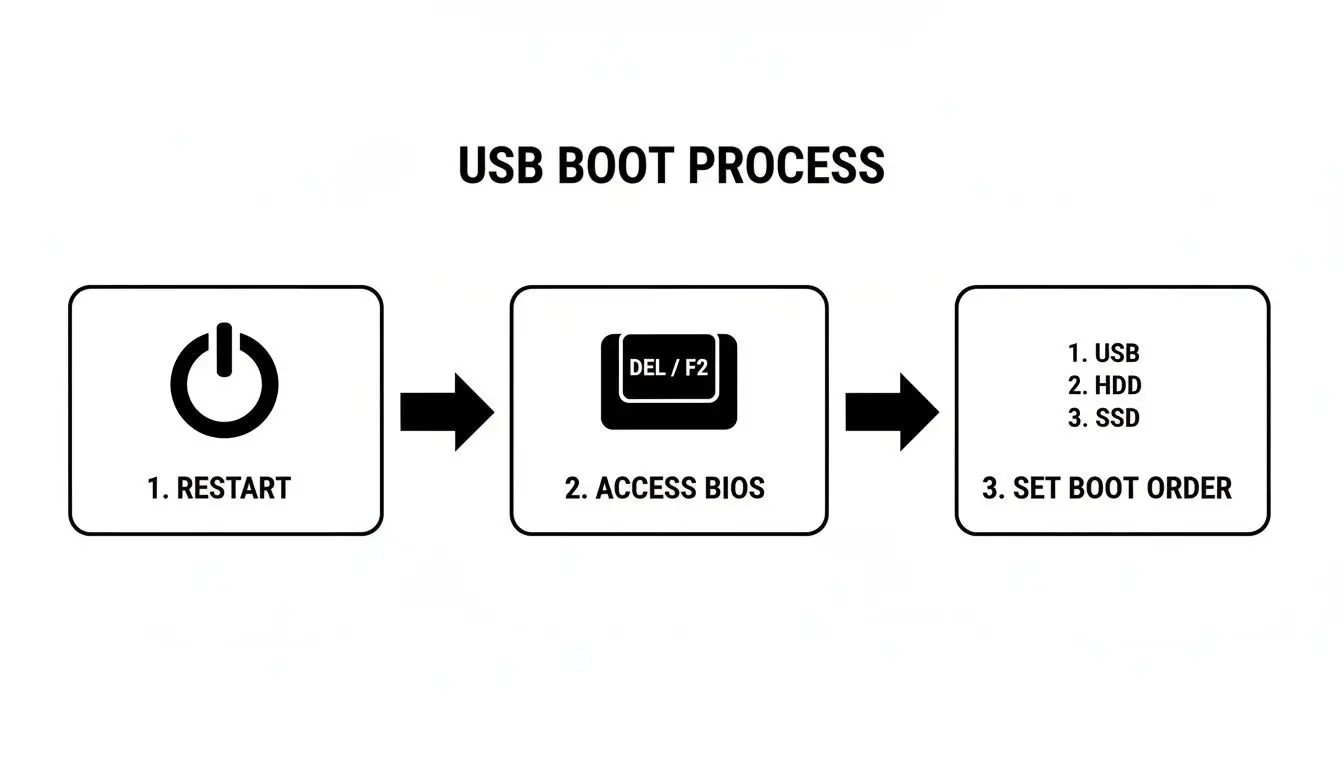
These core actions—restarting, entering the firmware, and changing the boot order—are the universal gateway to formatting a drive outside of the main operating system.
Formatting With The Windows Installer
If you are using a Windows Installation USB, the process is integrated into the setup wizard.
Proceed through the initial language and keyboard preference screens until you reach the “Where do you want to install Windows?” screen. This is the disk management interface.
- Identify the target drive: You will see a list of all drives and partitions. Carefully identify the correct drive to be formatted to prevent accidental data loss.
- Delete existing partitions: For a completely clean format, select each partition on the target drive and click “Delete.” This will merge them into a single block of “Unallocated Space.”
- Create a new partition: Select the unallocated space and click “New.” You can use the full drive size or create custom partitions. Windows will default to the NTFS file system, which is standard for modern business environments.
Once you apply the changes, the drive is formatted. You can then proceed with the Windows installation or exit the installer and shut down the PC.
Advanced Formatting With Diskpart
For more direct control, the Windows Installer includes a powerful command-line tool. Pressing Shift + F10 on any installation screen opens a Command Prompt window, giving you access to diskpart.
This utility is less forgiving than the graphical interface but is faster and preferred by many IT professionals. After opening Command Prompt, type diskpart and press Enter. Then:
list diskdisplays all connected drives.select disk #chooses your target drive (replace#with the correct number).cleancompletely removes all partition and formatting information from the disk. This is a fast and destructive command.create partition primarycreates a new primary partition on the clean disk.format fs=ntfs quickapplies the NTFS file system.
This method bypasses the graphical interface and is highly efficient for system deployment.
A Note on Quick vs. Full Format: A “Quick Format” (like the
diskpartcommand above) only deletes the file table, making the data invisible but not actually erased. A “Full Format” checks for bad sectors and overwrites the data with zeros, but it is still not a secure method for business data.
The formatting standards we use today, like NTFS, are the result of decades of innovation. Milestones like IBM’s standardization of the 512-byte block size in the 1980s were foundational for the interoperable storage systems modern businesses rely on.
If you are decommissioning a drive that contained sensitive corporate or customer data, simple formatting is insufficient. For a deeper understanding of secure ITAD practices, read our guide that explains how to truly erase a hard drive for data security.
When Formatting Is Not Enough for Data Security
For an IT manager, one of the most critical responsibilities is ensuring data security throughout an asset’s lifecycle. A standard format is not a secure data erasure method and should never be used for retiring IT assets containing sensitive information.
When you format a drive, you are only removing the file system’s index. The underlying data—your company’s financial records, customer PII, or intellectual property—often remains on the drive. This data is easily recoverable with widely available software, creating a massive security and compliance liability for your business.
The Compliance Gap Formatting Creates
In the United States, multiple federal and state regulations mandate that sensitive information be made completely unrecoverable during IT asset disposal.
- FTC Disposal Rule: This rule requires businesses to take “reasonable measures” to protect against unauthorized access to consumer information. A simple format does not meet this standard.
- HIPAA: The Health Insurance Portability and Accountability Act enforces strict rules for protecting patient health information (PHI). Non-compliance can lead to multi-million dollar fines.
- GDPR: For businesses handling data of EU citizens, the General Data Protection Regulation imposes severe penalties for data breaches, including those resulting from improper hardware disposal.
A quick format initiated via the BIOS boot menu is a procedural step for repurposing a drive internally, not a security measure for retiring it. Relying on it for data destruction is a direct violation of most data privacy laws.
The table below clarifies why a simple format is inadequate for business and compliance needs.
Comparing Data Removal Methods
| Method | Security Level | Best For | Compliance Ready? |
|---|---|---|---|
| Quick Format | Very Low | Internal redeployment of non-sensitive systems. | No |
| Full Format | Low | A slightly more thorough wipe for non-sensitive drives. | No |
| NIST 800-88 Purge | Very High | Securely sanitizing drives for reuse, resale, or disposal. | Yes |
| Physical Shredding | Absolute | Destroying drives with highly sensitive data or failed drives. | Yes |
As shown, only professional-grade data destruction methods meet the security and compliance standards required for business IT assets.
Professional Data Destruction Is Essential
When a corporate IT asset reaches its end-of-life, your organization’s responsibility for its data does not end. A professional IT Asset Disposition (ITAD) provider like Beyond Surplus is an essential partner for bridging the gap between a simple format and true, compliant data sanitization.
We use industry-standard methods to ensure your business’s data is irretrievably destroyed.
- Certified Data Wiping: We use specialized software to perform multi-pass overwrites that strictly adhere to the NIST 800-88 “Purge” standard. This process overwrites every sector of the drive with random data, making original information impossible to recover.
- Physical Destruction: For the highest level of security, or for failed drives, we offer on-site and off-site hard drive shredding. Drives are physically disintegrated into tiny fragments. We also use techniques like degaussing, which you can learn more about here, which deploy powerful magnetic fields to instantly destroy data before shredding.
Upon completion, we issue a Certificate of Data Destruction. This legal document serves as your official audit trail, proving your organization has met its compliance obligations for secure electronics recycling and IT equipment disposal.
Common Questions About Formatting from BIOS
Even for experienced IT professionals, formatting issues can arise. Here are answers to common questions encountered when attempting to format a hard drive by booting from external media.
What If My BIOS Does Not Detect The USB Drive?
This is a frequent issue with a few common causes. First, try a different USB port, preferably one directly on the motherboard’s rear I/O panel, as front-panel ports can sometimes be less reliable for booting. If that fails, the bootable media itself may be faulty; recreate it using a trusted tool like Rufus.
If the issue persists, return to the BIOS/UEFI settings. Ensure that “Secure Boot” is disabled. You may also need to enable a setting like “Legacy USB Support” or “CSM (Compatibility Support Module)” to allow the system to recognize the bootable USB device.
Can I Format The Drive My Operating System Is On?
No, you cannot format the primary OS drive (e.g., C:) while the operating system is running from it. The OS locks its own files to prevent critical system processes from being deleted. This is precisely why booting from an external device is a requirement.
By booting from a USB drive, you load a separate, temporary operating environment. From this external environment, the internal hard drive is treated as a non-system disk, giving you the necessary permissions to delete its partitions and format it.
Key Insight: Formatting your primary OS drive always requires booting from an “outside” tool. This isn’t a workaround; it’s the fundamental way the task has to be done.
Is Formatting The Same As Securely Wiping A Drive?
This is the most critical distinction for any business: formatting and secure wiping are not the same.
- Formatting removes the file index, making files invisible to the OS. The data remains on the disk and is often recoverable with basic tools. It is a function for preparing a drive for reuse, not for data security.
- Secure Wiping (or sanitization) is a data destruction process. It uses specialized software to overwrite the entire drive with random data, rendering the original information permanently unrecoverable. This is the only acceptable method for disposing of drives that held sensitive business information.
When your company’s IT assets reach their end-of-life, a simple format offers zero protection for your data and fails to meet compliance standards. Beyond Surplus provides certified electronics recycling and secure data destruction services for businesses across the United States, meeting NIST 800-88 guidelines. Contact us to schedule a pickup and receive a Certificate of Data Destruction for your compliance records.


