
Before your IT team reaches for a screwdriver to begin the process to remove a hard drive from a laptop at your Montgomery, AL facility, there are crucial preliminary steps. This isn't just about careful handling; it's about protecting sensitive business data and ensuring that valuable IT assets aren't accidentally damaged. For businesses in Alabama, getting this prep work right is what separates a smooth asset decommissioning process from a major data security incident.
Your Pre-Removal Safety and Tools Checklist
Successfully pulling a hard drive from a corporate laptop starts well before the case is opened. It begins with a methodical approach to securing your data and setting up a workspace to prevent accidental damage. I’ve seen organizations skip these initial steps and face lost data or fried components, so trust me, it’s worth the extra few minutes for your team.
Secure Your Data First
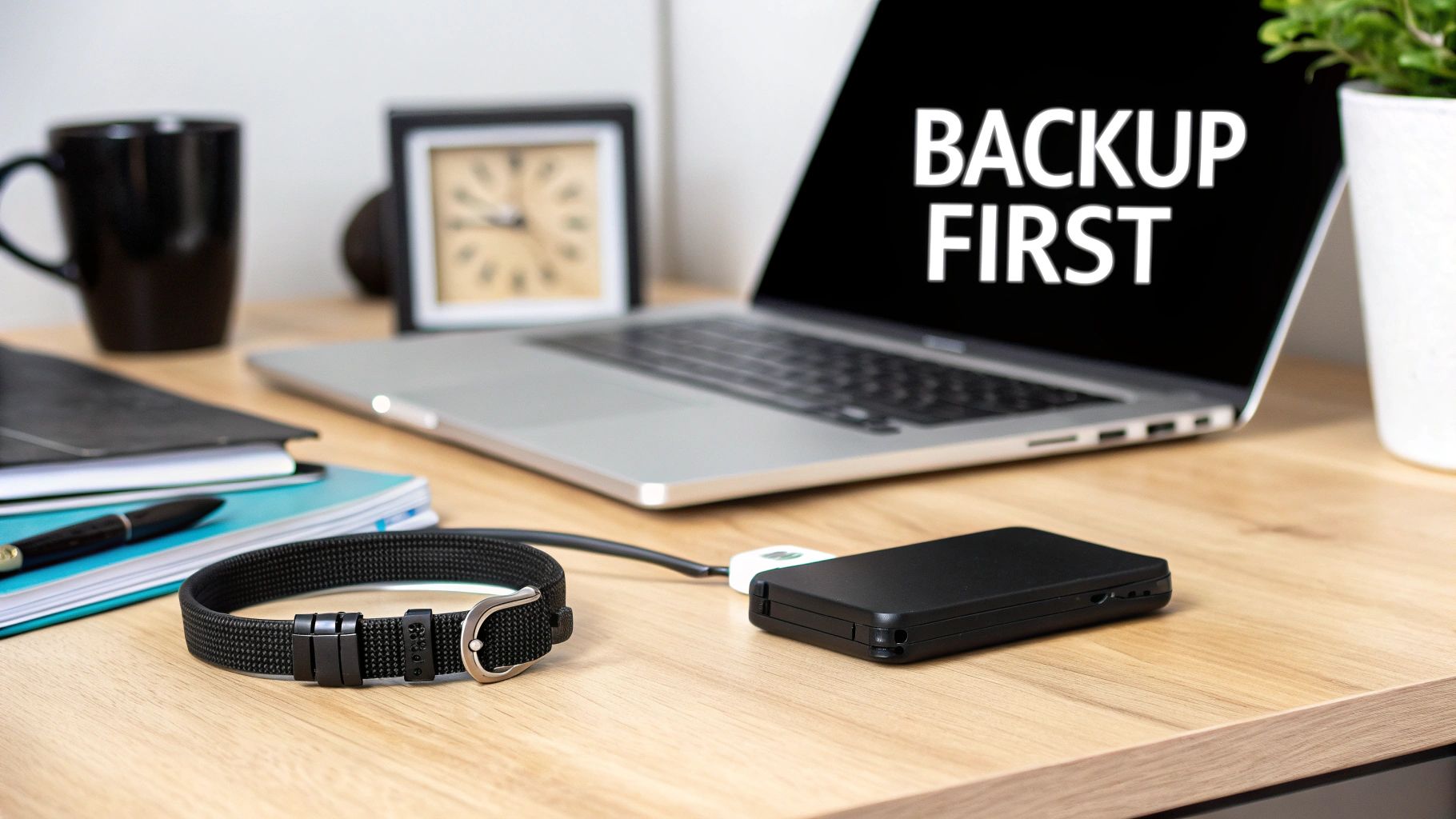
Your absolute first priority is to create a complete, verified backup of everything on that drive. You must operate under the assumption that once the removal process begins, the data is at risk. For any business, this isn't just a good idea—it's a fundamental security procedure and part of a robust IT asset management strategy.
- Cloud-Based Solutions: Services like AWS S3 or Azure Blob Storage are excellent for enterprise-level backups, offering versioning and robust security protocols.
- External Hard Drives: A high-capacity external drive is effective for a quick, local backup. If you're dealing with sensitive corporate information, ensure you're using an encrypted drive to maintain data security.
Whatever method aligns with your company’s data policies, just make sure you have a confirmed backup before proceeding.
Prepare the Laptop and Workspace
Once your data is secure, it’s time to get the hardware and your environment ready. This is where you can prevent the most common and avoidable mistakes.
First, perform a complete, proper shutdown. Do not just put the device to sleep or in hibernate mode. Those states can keep a trickle of power flowing to some components, creating a risk for a short circuit.
The biggest unseen threat when handling internal computer components is electrostatic discharge (ESD). A tiny spark, one you can't even see or feel, can instantly destroy sensitive electronics like RAM or the motherboard itself.
This is exactly why an anti-static wrist strap is an essential tool for any IT professional. It safely grounds the technician, eliminating any static buildup and protecting the laptop’s delicate circuits.
Before you start, ensure the laptop is unplugged from its power adapter. If the battery is removable, take it out before touching any internal components.
If you’re preparing devices for end-of-life disposal, taking these steps is crucial. For a deeper dive, check out our guide on how to prep electronics for recycling. Proper preparation is the foundation for safe and successful hard drive removal.
Essential Gear for Hard Drive Removal
Before diving in, it’s always best practice to lay out your tools. Here’s a quick reference to confirm you have the right gear on hand to do the job safely and efficiently.
| Item | Purpose | Importance Level |
|---|---|---|
| Screwdriver Set | To open the laptop case and remove drive mounts. | Critical |
| Anti-Static Wrist Strap | Prevents electrostatic discharge (ESD) from damaging components. | Critical |
| Plastic Prying Tools (Spudgers) | Safely opens plastic clips and cases without causing scratches. | High |
| Small Containers | Keeps screws organized to prevent loss. | High |
| External Drive Enclosure | To access data from the old drive after removal, if needed. | Recommended |
Having these items ready will make the entire process much smoother and reduce the risk of operational errors.
Finding and Identifying Your Laptop Hard Drive
Before picking up a screwdriver, your technician needs to do some preliminary investigation. The first task is to identify exactly where the hard drive is located and what kind of drive you're dealing with. Laptops are not all built the same. The location and type of storage can vary significantly from one model to the next, which impacts the tools and techniques required.
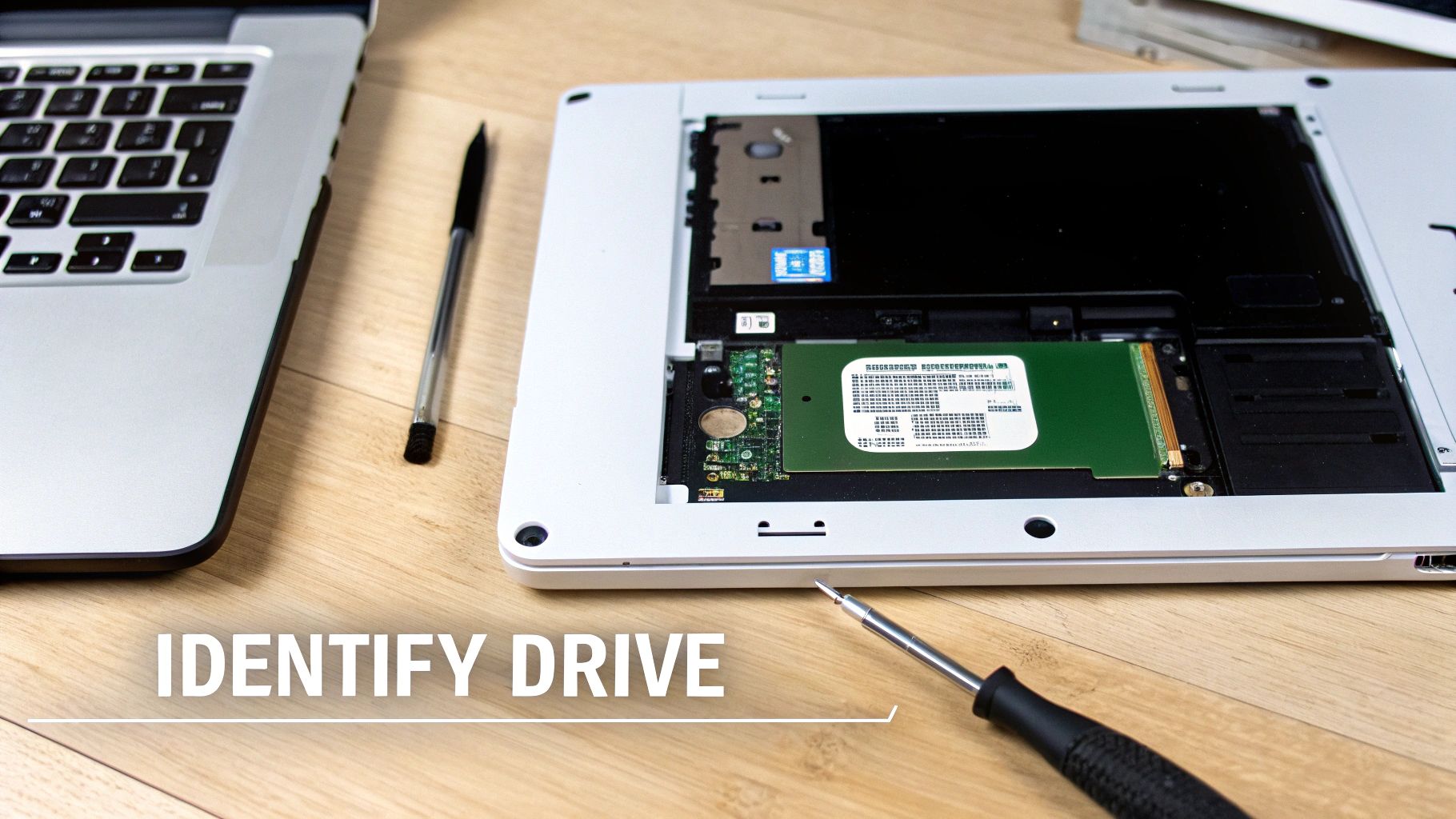
Knowing what you’re looking for ahead of time saves guesswork and prevents accidental damage. A quick web search for your laptop's specific model number plus "service manual" or "teardown" usually provides a complete map of its internal components.
Two Common Laptop Designs
When it comes to accessing internal components, laptops generally fall into two categories. Identifying which design you have will set expectations for the entire process.
- Dedicated Access Panel: This is the traditional, service-friendly approach. Many older or business-class laptops have a small, separate plastic panel on the bottom, usually held in place by one or two screws. Removing it provides direct access to the hard drive and RAM. It’s a simple design that makes removal straightforward.
- Unibody Construction: Modern ultrabooks and slim laptops almost always have a unibody design. This means the entire bottom case is a single piece that must be removed. This typically involves unscrewing anywhere from 8 to 15 screws around the perimeter. Afterward, you'll need to carefully pry the case open with plastic tools to avoid scratching or cracking the chassis. It's a task that requires more patience.
Knowing the design helps you allocate the right amount of time and use the correct tools. For a unibody case, plastic prying tools, often called spudgers, are essential.
Identifying the Drive Type
Once inside, you need to identify the storage drive itself. The three most common types look quite different from one another.
Identifying the drive correctly is crucial. Attempting to remove an M.2 SSD with the same method used for a SATA drive can easily damage the delicate connector or the drive itself, turning a simple removal into a costly repair.
Here’s what to look for:
- 2.5-inch SATA Drive: This is the classic laptop hard drive, a rectangular box about the size of a deck of cards. It could be a spinning Hard Disk Drive (HDD) or a Solid-State Drive (SSD) in the same form factor. It plugs in using a distinctive L-shaped SATA power and data connector.
- M.2 SATA SSD: This is a much smaller, gum-stick-shaped drive. It lays flat on the motherboard and is typically held down by a single tiny screw at the far end.
- M.2 NVMe SSD: Visually, this drive is almost identical to an M.2 SATA SSD. The main difference is in its speed and connector, but for removal purposes, the process is the same—find that one screw holding it in place.
This step is absolutely critical for any IT asset manager. When you're tasked to remove the hard drive from a laptop, being prepared for the specific component inside makes the process smooth, efficient, and risk-free.
Removing a Traditional 2.5-Inch SATA Drive
The 2.5-inch SATA drive is a workhorse of laptop storage, found in millions of business machines. Whether it's a classic spinning Hard Disk Drive (HDD) or a more recent Solid-State Drive (SSD) in the same housing, the removal process is refreshingly consistent. Mastering this procedure is a fundamental skill for any IT professional managing a fleet of corporate laptops.
Before picking up a screwdriver, there's one safety step you cannot skip: disconnecting the battery. This is non-negotiable and prevents electrical issues.
Disconnect All Power Sources
For older laptops with an external, removable battery, this is simple. Just slide a latch, pop it out, and it's done. However, most modern business laptops have an internal battery, which requires one extra step.
Once the bottom case is off, you'll spot the internal battery. It’s the large, flat, rectangular component with wires leading to a plastic connector on the motherboard. You need to carefully unplug that connector. You don’t have to remove the entire battery from the chassis; just breaking its connection to the system is enough to ensure no power is flowing.
Accessing and Unscrewing the Drive
With the power safely disconnected, it's time to locate the drive. On some models, a dedicated access panel makes the drive immediately visible. On most unibody designs, you'll see it nestled among other components after removing the entire bottom case.
The 2.5-inch drive is almost always secured in a thin metal cage or bracket, which is then screwed directly into the laptop’s frame. Your first task is to remove these mounting screws.
A pro tip: keep your screws organized. It’s easy to mix up screws of different lengths. Using a long chassis screw on a hard drive bracket could mean you end up driving it right into the motherboard underneath.
After the bracket is free from the laptop chassis, gently slide the drive horizontally. This movement detaches it from the SATA and power connectors on the motherboard. Do not pull straight up—you risk bending or breaking those delicate connector pins.
Releasing the Drive from Its Caddy
You're almost there. With the drive and its attached bracket out of the laptop, the final step is to separate them. You'll typically find four small screws holding the drive in its metal caddy, two on each side.
Once those are out, the bare drive will slide out freely. Now you are holding the physical component containing sensitive corporate data. Handle it by the edges and try not to touch the exposed circuit board on the bottom.
Following this methodical process is how you remove the hard drive from a laptop without damaging the drive or the computer. For any organization retiring multiple machines, knowing how to do this is the first step in preparing assets for secure disposal. You can learn more about building a responsible end-of-life strategy by reading our guide to responsible laptop disposal with Beyond Surplus. Proper handling at this stage paves the way for compliant data destruction.
Handling Modern M.2 NVMe and SATA SSDs
If you've opened a laptop from the last few years, you've likely noticed that the old, boxy hard drives are gone. In their place, you'll find something that looks more like a stick of gum. This is the M.2 form factor, and whether it's a SATA or a super-fast NVMe version, removing it requires a different touch than the old 2.5-inch drives.
Forget the caddies and multiple screws that held older SATA drives in place. An M.2 drive is usually secured with just a single, tiny screw at the far end. This minimalist setup saves space, but it also demands care. One wrong move with a screwdriver can strip the head or crack the drive's circuit board.
The Angled Removal Technique
Here's the most important thing to remember when working with M.2 SSDs: they come out at an angle.
Once you remove that one retaining screw, the drive won’t lie flat. It will pop up on its own to about a 20-30 degree angle. This is normal and is the correct position for removal.
Gently hold the drive by its edges and slide it out of the M.2 slot at that same angle. Do not try to pull it straight up or flatten it down. That’s a surefire way to damage the delicate gold connectors on the drive or the motherboard slot itself.
Distinguishing M.2 SATA from NVMe
While the physical removal process is identical for all M.2 drives, it's helpful to know what you're working with. You can tell the difference between an M.2 SATA and an M.2 NVMe drive by looking at the notches—or "keys"—in the connector pins.
- M.2 SATA SSDs: These usually have two notches (B & M keys).
- M.2 NVMe SSDs: These typically have just one notch (M key).
This design prevents plugging a drive into an incompatible motherboard slot. While more of a concern during installation, identifying the drive type helps you understand what you're dealing with before moving on to data destruction.
The following graphic breaks down the much simpler process for a traditional SATA drive, boiling it down to three core actions: disconnecting, unscrewing, and detaching.
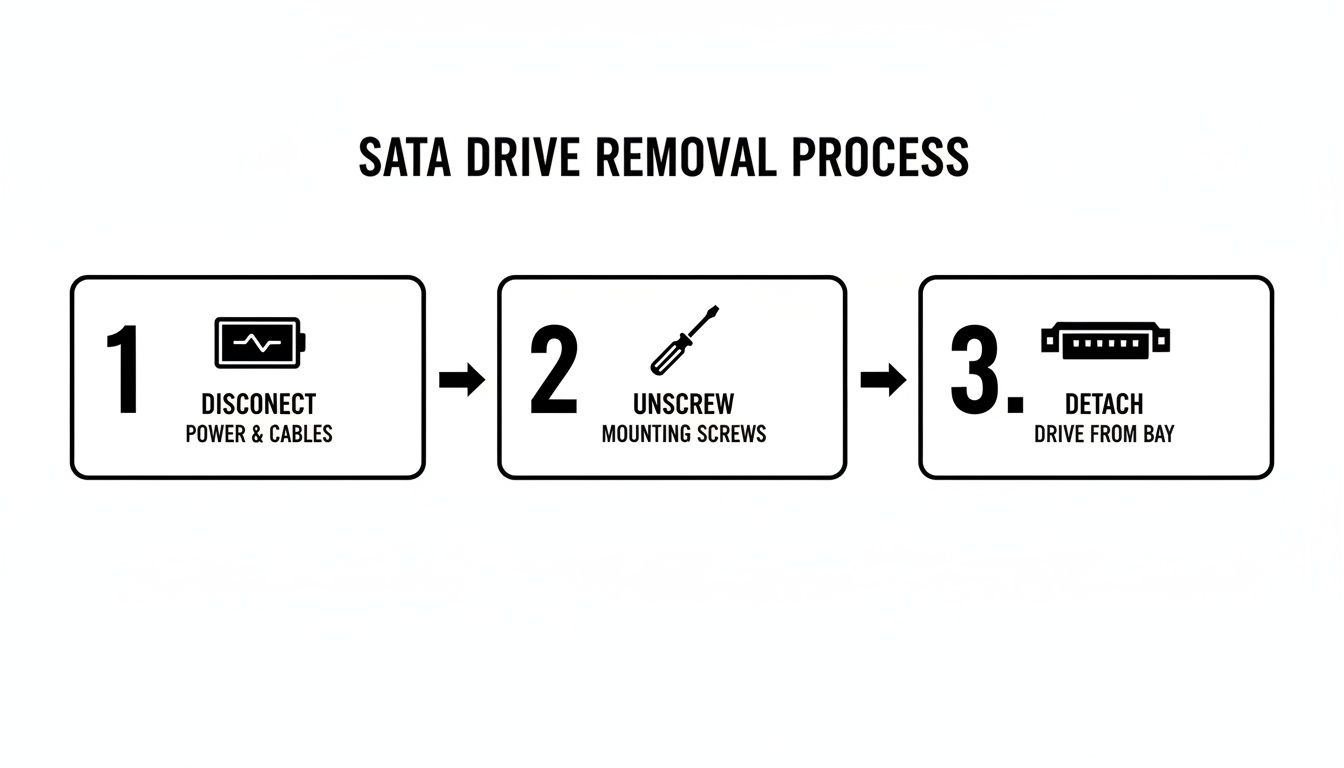
This straightforward workflow shows why a methodical approach is always best, regardless of the drive type. It’s all about preventing damage to the hardware.
Critical Handling Note: An M.2 drive is an exposed circuit board. Always handle them by their sides. Touching the black memory chips or the gold connector pins with bare fingers can transfer oils or static, potentially causing performance issues or complete failure.
Getting the M.2 drive out is only half the battle. Now comes the critical part: ensuring any sensitive company data on it is permanently destroyed. For any business, certified data wiping or physical destruction isn't just a good idea—it's a compliance and security mandate. To dig deeper into the right way to handle this, check out our guide on how to erase a hard drive completely.
Secure Data Destruction: The Corporate Imperative
Removing the hard drive from a laptop is a technical task, but for any business, that’s just the beginning. The real work—and the real risk—lies in what happens next: ensuring the data on that drive is permanently destroyed. This is where the task shifts from a simple hardware procedure to a critical security function.
Too many organizations believe formatting a drive or dragging files to the trash is sufficient. That's a dangerously false sense of security. These basic actions only remove the pointers to your data, leaving the actual information recoverable with easily accessible software. For a business, that oversight can lead to a catastrophic data breach, destroying your reputation and inviting hefty fines.
Beyond Deletion: Navigating Regulatory Compliance
In today's data-driven world, "good enough" is not an option. A host of federal and state laws dictate exactly how sensitive information must be handled and, more importantly, destroyed.
- HIPAA: Healthcare organizations are required to make sure Protected Health Information (PHI) is rendered completely unreadable and indecipherable.
- GLBA: Financial institutions have a strict mandate to protect consumers' private financial information, including through secure disposal methods.
- FACTA: Nearly every business must properly destroy consumer information to prevent identity theft and comply with this act.
Failing to meet these standards can lead to crippling fines and serious legal consequences. That’s why certified data destruction isn’t just a "best practice"—it's a legal and financial necessity for any responsible organization. Before any physical destruction, ensure you know How to Backup Computer Files to avoid losing critical information.
The Gold Standard: Certified Destruction
When it comes to your company's data, you need an ironclad guarantee. Professional, certified data destruction is the only way to achieve it. This goes far beyond software wipes, ensuring that data is permanently and physically eliminated.
The market reflects this need. The commercial use segment is the driving force in the hard disk destruction equipment market, accounting for a massive $450 million in value. Businesses understand that compliance is mandatory and the cost of a data breach is too high to risk.
The single most important document you can receive in this process is a Certificate of Data Destruction. This isn't just a piece of paper; it's a legally binding record proving you followed industry-standard procedures. It effectively transfers the liability from your shoulders to your certified ITAD partner.
Services like on-site hard drive shredding offer the ultimate peace of mind. A mobile shredding truck can come directly to your facility, allowing you to witness as your hard drives are physically pulverized into tiny fragments. This transparent process creates an unbreakable chain of custody, erasing any doubt about the fate of your data.
Partnering with a certified vendor for secure hard disk disposal is the most effective way to shield your business, your clients, and your reputation from the fallout of a data breach.
Common Questions About Laptop Hard Drive Removal
Even with a perfect plan, questions can arise when you remove a hard drive from a laptop. Addressing these common issues ahead of time can prevent costly mistakes and keep your company’s hardware and data secure.
Let’s review some of the most frequent questions from IT managers and business owners.
Can I Reuse a Hard Drive I Pulled From an Old Laptop?
Absolutely. An old 2.5-inch SATA drive can be repurposed. You can install it in a desktop as a secondary drive or place it in a USB enclosure to create a portable external drive. The same applies to M.2 drives—they can find a new home in a compatible motherboard slot or a dedicated M.2 enclosure.
But here’s the critical first step: you must perform a secure data wipe. Before that drive gets a second life, you must be 100% sure no sensitive business information remains. A simple format is not sufficient. For any drive that once held corporate data, a professional-grade wipe is non-negotiable.
Repurposing hardware is a smart way to maximize the value of your IT assets, but only after its data has been verifiably and permanently destroyed.
What If My Laptop Won't Power On After I Put It Back Together?
First, do not panic. The culprit is often a simple disconnected cable. Power the machine down completely, unplug it, and open it back up.
Carefully double-check every connection you might have touched. Pay close attention to these common offenders:
- The internal battery cable
- RAM modules (ensure they're snapped in tight)
- Any delicate ribbon cables for the keyboard or trackpad
If everything looks correct but it still won’t turn on, you may have accidentally caused an electrostatic discharge (ESD) event. This can damage sensitive components on the motherboard and will likely require professional diagnosis.
Is Professional Hard Drive Shredding Really Better Than Drilling Holes?
Yes, significantly. Drilling holes in a drive might seem destructive, but it does not guarantee the data is unrecoverable. A determined professional with the right forensic tools could still potentially recover information from the damaged platters.
Professional shredding, on the other hand, physically pulverizes the drive into tiny, untraceable fragments. More importantly for any business, a certified ITAD partner provides a Certificate of Data Destruction.
This is more than a piece of paper; it’s a legal document proving your organization followed compliant data privacy protocols. Understanding the standards, like those detailed in the NIST SP 800-88 guidelines, is fundamental to managing corporate risk. This certificate officially transfers liability from your company to the vendor—an essential shield for audits and sound risk management.
Contact Beyond Surplus for certified electronics recycling and secure IT asset disposal in Montgomery and across the United States.